Not everyone wants another app on their phone. Some people use a computer more than a tablet, some have an Android phone or an older device, and some simply don't like installing things. Online brain games that run in a web browser solve all of that: you open a web address, and you're playing.
This guide explains what "no download" really means, where to find good online brain games for seniors, how to make them easier to see, and how to stay safe while playing.
What "No Download" Means
A browser game runs inside the program you already use to visit websites, such as Chrome, Safari, Edge or Firefox. There's nothing to install, no app store, and nothing to update. It works on:
- Windows and Mac computers, where a bigger screen and a mouse can be easier than a touchscreen.
- Tablets and phones, including Android devices and older iPads.
- Library and community center computers, which is handy for people without a device at home.
The trade-off is that progress is usually saved in that browser on that device. If you switch from the laptop to the tablet, you may start again unless the site has accounts.
Where to Find Online Brain Games for Seniors
Newspaper Puzzle Pages
Many newspapers offer their daily crossword, sudoku and word games online. Some are free and some need a subscription. If you already read a paper, start there: the puzzles will feel familiar. See our guides to large print crossword puzzles and easy sudoku for seniors for tips.
AARP Games
AARP Games has a large collection of browser games, including mahjongg, solitaire, word games, trivia and a daily crossword. Many are free to play, some are for members only, and the site shows advertising.
Brain Training Sites With a Web Version
Some brain training programs run in the browser as well as in apps. Check whether the free part is enough for you before signing up for anything, and read our brain apps subscription checklist before paying.
SilverMind in the Browser
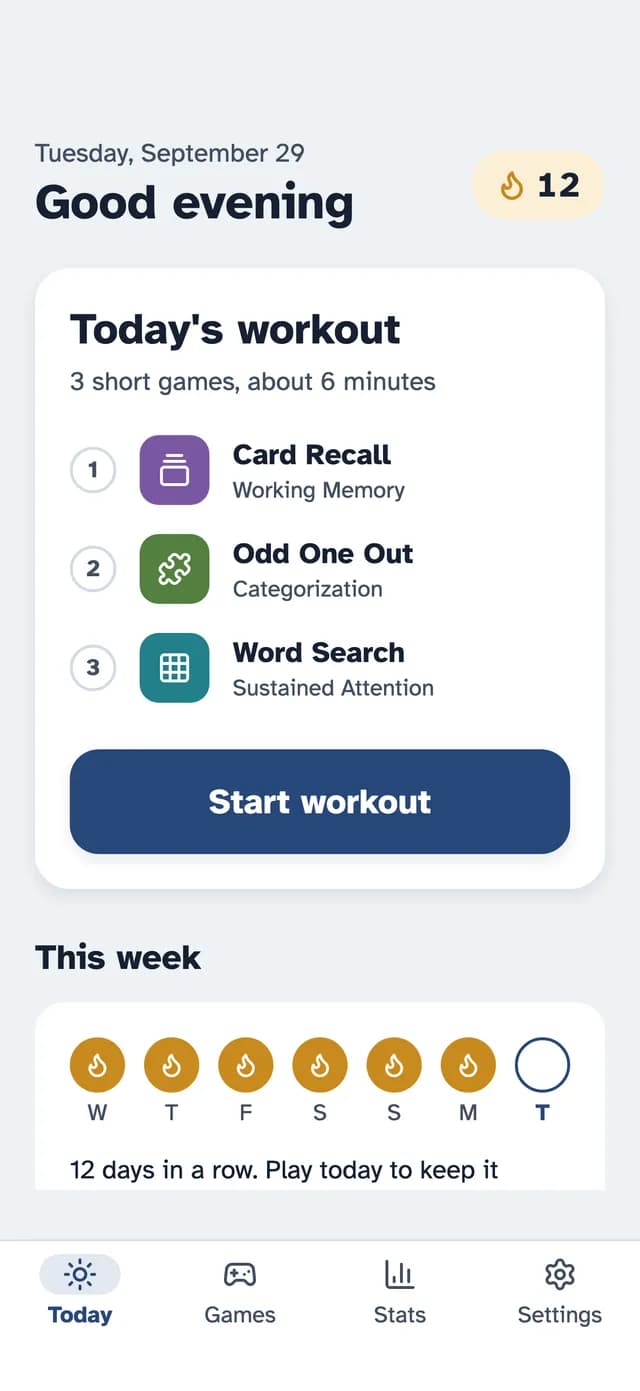
We make SilverMind, so here's a plain description. The same app that's on the App Store also runs in any web browser at silvermind.app/play, with nothing to install. It works on Android phones and tablets, Windows PCs and Macs as well as iPhone and iPad.
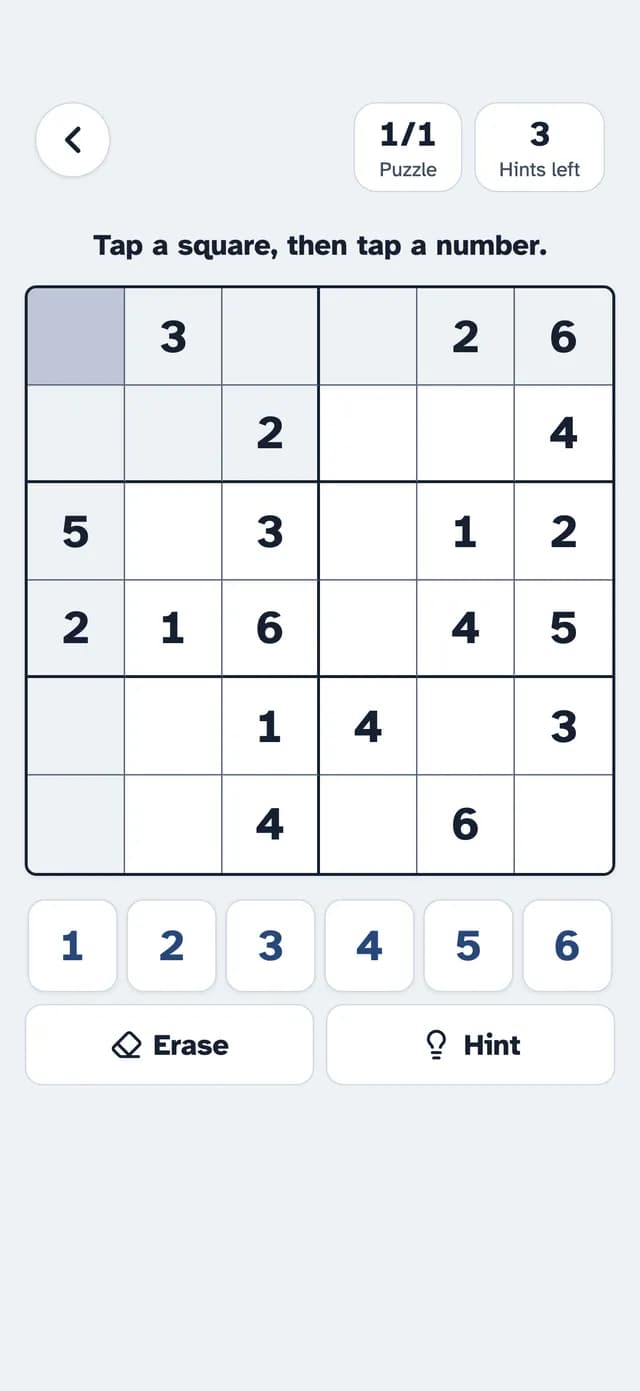
It was designed for older adults: large text in the Atkinson Hyperlegible typeface, big buttons, one task per screen, and no ads. Each day it suggests three short exercises, about six minutes in all, and many exercises have no clock. Eight of the 28 exercises are free for good, including Match Up, Word Search, Finish the Phrase and Mini Sudoku. Premium unlocks the rest. Progress is saved in the browser you play in.
How to Make Browser Games Easier to See
- Zoom the page. On Windows, hold Ctrl and press + (plus). On a Mac, hold Command and press +. Press 0 (zero) with the same key to go back to normal. On a tablet or phone, pinch outwards with two fingers.
- Go full screen. Press F11 on Windows, or Control-Command-F on a Mac, to hide the toolbars.
- Use a bigger screen. A laptop connected to a TV or monitor makes games much easier to see.
- A mouse can be easier than a trackpad for people with stiff fingers. Some find a large-button mouse even better.
- Turn up system text size. On Android, it's under Settings, Accessibility (or Display). Google explains it in Change text and display settings. On iPhone and iPad, go to Settings, Display & Brightness, Text Size.
Save It So It's One Tap Away
Typing a web address every day is a hurdle. Make it easy:
- Bookmark it and put the bookmark on the browser's toolbar.
- Add it to the home screen. On iPhone and iPad, tap the Share button in Safari and choose "Add to Home Screen". On Android in Chrome, tap the three-dot menu and choose "Add to Home screen". The game then has an icon like an app.
- Write it down. A sticky note on the monitor with the address in big letters helps more than you'd think.
If you're setting this up for a parent, our guide to setting up an iPad or iPhone for an elderly parent covers the other settings worth changing.
Staying Safe While Playing Online
Most problems come from ads and pop-ups, not the games themselves. Share these simple rules:
- "You've won!" messages are never real. Close the tab.
- Never install something a pop-up asks you to. Real game sites don't need it.
- Warnings that your computer has a virus, especially with a phone number to call, are scams. Close the browser and, if worried, ask someone you trust.
- Free games never need bank details. If a site asks for payment, stop and check what you're paying for.
- Stick to a few known sites saved as bookmarks, rather than searching every time.
Online Games Versus Apps
| Browser games | Apps | |
|---|---|---|
| Install needed | No | Yes |
| Works on Android, Windows, Mac | Usually | Depends on the app |
| Works offline | Usually not | Often |
| Progress | Often saved in that browser | Saved on the device or account |
| Ads | Common on free sites | Depends; check the listing |
Neither is better. Many people use both: an app on the tablet, and the same game in the browser on a computer.
A Note on Expectations
Online brain games are an enjoyable way to spend a few minutes and to learn something new. The National Institute on Aging notes that people improve at the tasks they practice, while evidence for broader benefits is limited, and no game has been shown to prevent dementia. Pair games with movement, good sleep and time with people. Our 5-minute daily brain workout shows one way to build a habit.
On an Android phone or tablet? Our guide to brain games for seniors on Android covers the settings and options there.
Research & References
- Cognitive Health and Older Adults - National Institute on Aging
- Change text and display settings - Android Accessibility Help, Google
- AARP Games - AARP